MuniBrokers Auth0 MFA Login Guide
Install a MFA Software Token on your mobile device
Numerous Android and iOS options are available, including Duo Mobile, LastPass Authenticator, Microsoft Authenticator, Google Authenticator, and Symantec VIP.
Once installed, ensure that you enable camera access to the application so you may register the QR code.
Numerous Android and iOS options are available, including Duo Mobile, LastPass Authenticator, Microsoft Authenticator, Google Authenticator, and Symantec VIP.
Once installed, ensure that you enable camera access to the application so you may register the QR code.
First time login after Auth0 is enabled
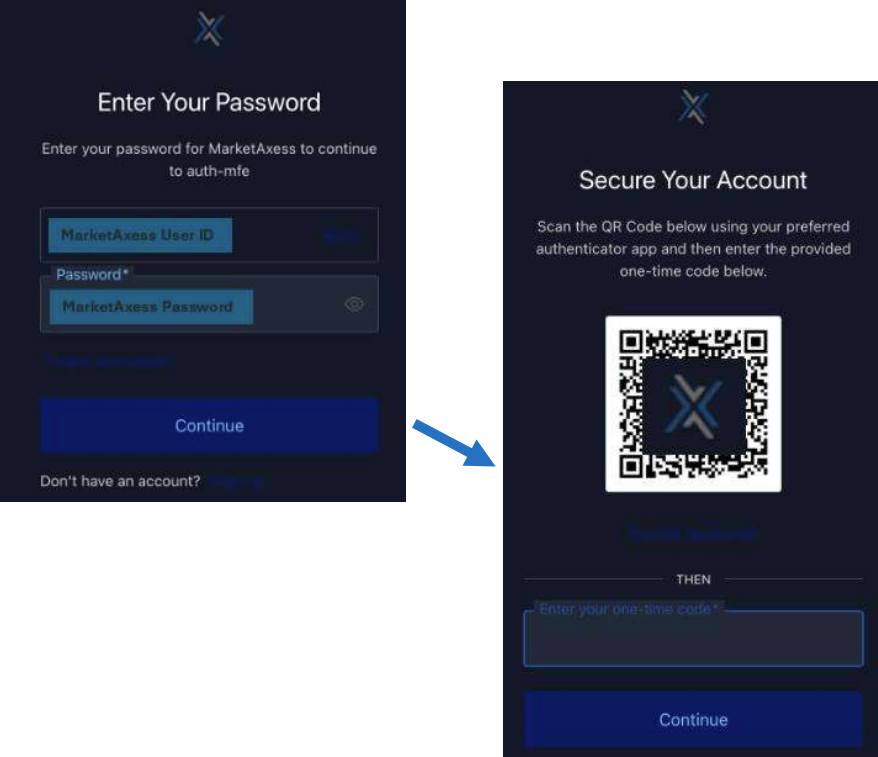
- Open MuniBrokers and enter your MuniBrokers username and password.
- Open the MFA software installed on your device, tap the plus sign (+) or “add account” to activate your camera
- Scan QR code using your preferred authenticator app and enter the one time code to set up.
- Upon successful login, you will be redirected to the MuniBrokers platform.
Subsequent logins after Auth0 registration
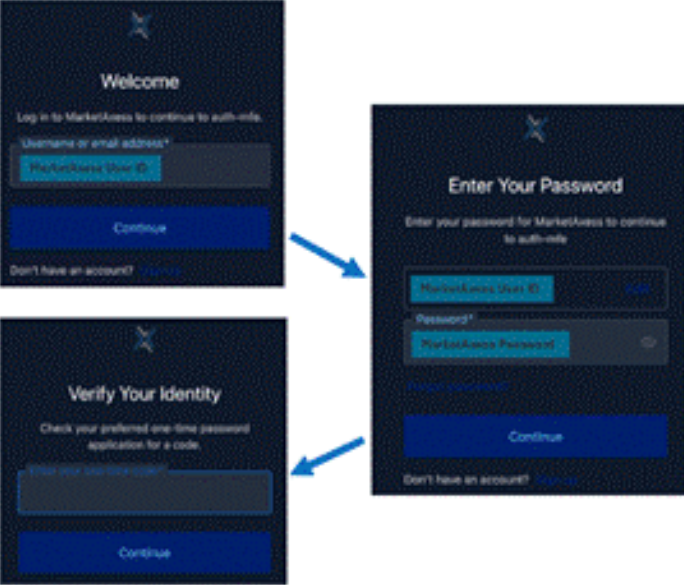
- Once setup and user registered on Auth0, going forward, all subsequent logins will require users to authenticate with MFA in addition to their MuniBrokers username and password.
- Open MuniBrokers and enter your credentials.
- Once prompted to verify your identity, open your authenticator app and enter the valid code to login.
- Upon successful login, you are redirected to the MB platform.
For any user login issues once set up is complete, contact our MarketAxess Customer Services Team:
- New York: [email protected] / +1 877 638 0037
- London: [email protected] / +44 (0) 20 7709 3105
- Singapore: [email protected] / +65 6916 1300